 Network Info
Juniper Networks builds routers, switches and firewalls that all run one operating system, Junos, so learning it once carries across every product line. This guide covers what Junos is, the main Juniper product families, how its commit model works, and the steps for a first setup.
What Junos is
Junos is the network operating system on Juniper routers, switches and firewalls. It is built on FreeBSD, and the same CLI and configuration syntax apply whether the device is a small branch firewall or a core router.
The CLI has two modes, shown by the prompt:
- Operational mode (user@J1>): look at the device with commands such as show interfaces terse or show route, and run tools like ping.
- Configuration mode (user@J1#): change the device. Enter it by typing configure, and leave it with exit.
Configuration is a hierarchy (system, interfaces, protocols, and so on). You can edit it with set commands, or by moving into a hierarchy with edit and working there.
Main Juniper product families
Juniper’s hardware falls into three groups: routers, switches and firewalls. Each group has several families aimed at a different place in the network.
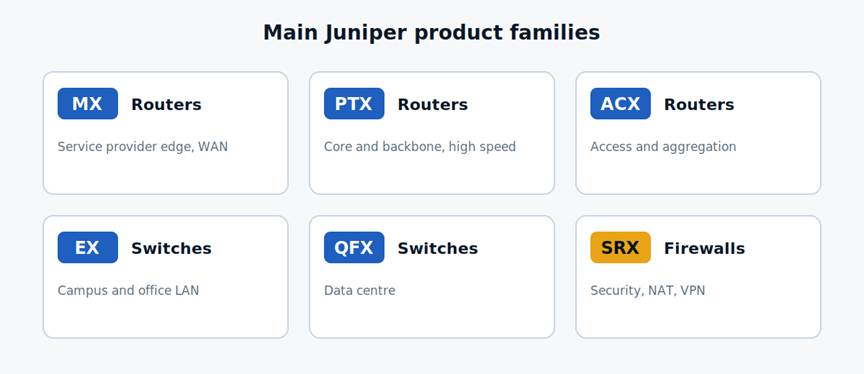
| Family | Type | Typical use |
| MX | Router | Service provider edge, WAN |
| PTX | Router | Core and backbone, high speed |
| ACX | Router | Access and aggregation |
| EX | Switch | Campus and office LAN |
| QFX | Switch | Data centre |
| SRX | Firewall | Security, NAT, VPN |
A rough rule for choosing: EX for an office, QFX for a server room, SRX where traffic meets the internet, and MX, PTX or ACX once you are building a WAN or provider network.
The commit model
Junos does not apply a change the moment you type it. Edits go into a candidate configuration, and nothing affects traffic until you commit. This is the feature most engineers come to like first, because a mistake can be reviewed and undone before it goes live.
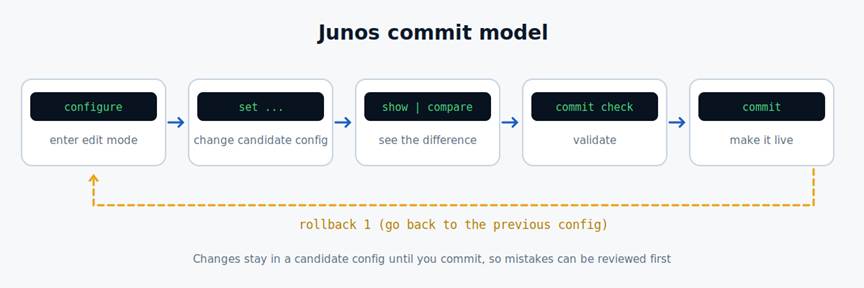
- configure enters configuration mode.
- set … changes the candidate configuration.
- show | compare shows the difference between the candidate and the running configuration.
- commit check validates the candidate without applying it.
- commit makes it live.
If a committed change turns out wrong, rollback 1 loads the previous configuration into the candidate; run commit again to apply it. Junos keeps several earlier versions, so rollback 2 and higher go further back.
On a remote device, commit confirmed 5 is a useful safety net. It rolls the change back automatically after 5 minutes unless you commit again, which saves you if a change cuts off your own connection.
First setup
A new or factory-reset device needs a few settings before you can manage it over the network. Connect to the console port, log in as root (no password on a factory-default device), start the CLI with cli, then work through these steps. Details such as the management interface name differ by model, so check the hardware guide for yours.
- Enter configuration mode:
user@J1> configure
- Set the root password. Junos requires one before it will commit:
user@J1# set system root-authentication plain-text-password
- Set the hostname:
user@J1# set system host-name J1
- Give the management interface an address. The interface name here (fxp0) is common on routers and some switches but varies, so substitute your model’s:
user@J1# set interfaces fxp0 unit 0 family inet address 192.0.2.10/24
- Enable SSH so you can leave the console:
user@J1# set system services ssh
- Review, validate and commit:
user@J1# show | compare
user@J1# commit check
user@J1# commit
commit complete
After the commit, the hostname appears in the prompt and you can reach the device over SSH at the management address.
Handy commands and next steps
| Command | What it does |
| show configuration | Display the running configuration |
| show interfaces terse | List interfaces with status and addresses |
| show route | Display the routing table |
| show system commit | List recent commits |
| show | compare rollback 1 | Compare the candidate against the previous commit |
| run show … | Run an operational command from configuration mode |
| ? | List the options available at the current point |
From here, the natural next steps are to configure interfaces and VLANs on an EX or QFX switch, or security zones and policies on an SRX firewall. Juniper’s own documentation for your model is the authority on hardware-specific details.
Leave a Reply