 Network Info
Cisco routers are the standard in many companies, universities and data centres, and they are the devices you work on in the CCNA course. Unlike a home router with a web page, a Cisco router is set up through a text-based command line. That looks scary at first, but there is a clear pattern, and once you learn it you can configure almost any Cisco device.
This guide takes you from a blank router to a working internet connection, with passwords, DHCP and NAT.
## What is Cisco?
Cisco Systems is an American networking company founded in 1984 by Leonard Bosack and Sandy Lerner, and it is headquartered in San Jose, California. Cisco routers and switches run an operating system called Cisco IOS (newer devices run IOS XE). You manage them mostly through the CLI, the command-line interface.
## Why learn Cisco routers?
– Very common in enterprise networks and service providers
– The basis of the CCNA certification, one of the most recognised networking certificates
– The commands and ideas carry over to many other vendors
– You can practise for free with Cisco Packet Tracer without owning a router
## How to connect to a Cisco router
A new router has no IP address, so you connect with a console cable (a blue rollover cable, or USB-to-console) between your PC and the router’s Console port.
1. Plug the cable in and find the COM port in Device Manager (Windows).
2. Open PuTTY and choose Serial.
3. Enter the COM port, with speed 9600.
4. Click Open.
The default console settings are 9600 baud, 8 data bits, no parity, 1 stop bit and no flow control. If you use Packet Tracer, just click the router, then open the CLI tab.
## Understand the CLI modes
Most beginner mistakes come from being in the wrong mode. Look at the prompt to know where you are.
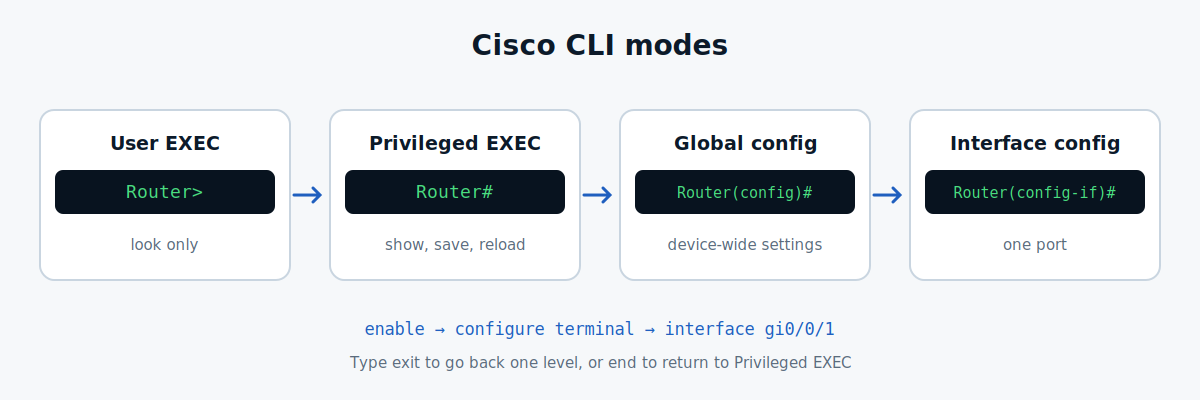
“`
Router> enable
Router# configure terminal
Router(config)# interface gigabitethernet 0/0/1
Router(config-if)# exit
Router(config)# end
Router#
“`
Useful tips:
– Press Tab to complete a command.
– Type ? after any word to see the options.
– `exit` goes back one level. `end` (or Ctrl+Z) returns to `Router#`.
– Commands can be shortened, so `conf t` means `configure terminal`.
## The lab we will build
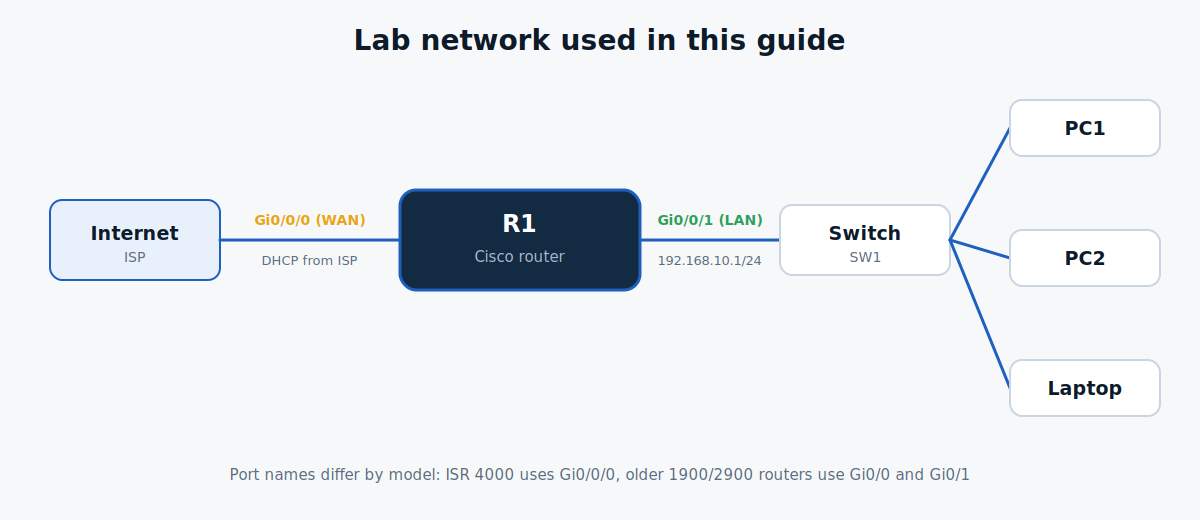
Port names differ by model. This guide uses `GigabitEthernet0/0/0` for the WAN and `GigabitEthernet0/0/1` for the LAN. Run `show ip interface brief` to see your own names, and replace them in the commands below.
## Step 1: Name the router
“`
Router> enable
Router# configure terminal
Router(config)# hostname R1
R1(config)#
“`
The prompt now shows `R1`.
## Step 2: Secure access
Set a password for privileged mode, and encrypt plain-text passwords in the config:
“`
R1(config)# enable secret UseAStrongPassword
R1(config)# service password-encryption
“`
Protect the console line:
“`
R1(config)# line console 0
R1(config-line)# password ConsolePass123
R1(config-line)# login
R1(config-line)# exit
“`
Use `enable secret`, not `enable password`. The secret is stored with a stronger hash.
## Step 3: Set up the LAN interface
“`
R1(config)# interface gigabitethernet 0/0/1
R1(config-if)# description LAN to switch
R1(config-if)# ip address 192.168.10.1 255.255.255.0
R1(config-if)# ip nat inside
R1(config-if)# no shutdown
R1(config-if)# exit
“`
Cisco interfaces are shut down by default. If you forget `no shutdown`, the port stays down.
## Step 4: Set up the WAN interface
If your ISP gives an address automatically:
“`
R1(config)# interface gigabitethernet 0/0/0
R1(config-if)# description WAN to ISP
R1(config-if)# ip address dhcp
R1(config-if)# ip nat outside
R1(config-if)# no shutdown
R1(config-if)# exit
“`
If your ISP gives you a static IP instead, use `ip address <address> <mask>` and add a default route:
“`
R1(config)# ip route 0.0.0.0 0.0.0.0 <ISP gateway>
“`
With `ip address dhcp`, the router normally learns the default route automatically.
## Step 5: Give devices IP addresses with DHCP
“`
R1(config)# ip dhcp excluded-address 192.168.10.1 192.168.10.9
R1(config)# ip dhcp pool LAN
R1(dhcp-config)# network 192.168.10.0 255.255.255.0
R1(dhcp-config)# default-router 192.168.10.1
R1(dhcp-config)# dns-server 8.8.8.8 1.1.1.1
R1(dhcp-config)# exit
“`
The `excluded-address` line keeps the first 9 addresses free for devices that need fixed IPs, like the router and servers.
## Step 6: Enable NAT (PAT)
Your LAN uses private addresses, so the router must translate them to its public address. This is called NAT overload, or PAT.
“`
R1(config)# access-list 1 permit 192.168.10.0 0.0.0.255
R1(config)# ip nat inside source list 1 interface gigabitethernet 0/0/0 overload
“`
The access list says which addresses may be translated. The second command says to translate them to the WAN interface address.
## Step 7: Save the configuration
This is the step beginners forget. The running configuration is lost when the router reboots unless you save it:
“`
R1# copy running-config startup-config
“`
You can also use `write memory`, or `wr` for short.
## Step 8: Verify
“`
R1# show ip interface brief
R1# show ip route
R1# show ip dhcp binding
R1# show ip nat translations
R1# ping 8.8.8.8
“`
What to look for:
– `show ip interface brief`: both interfaces should show `up` and `up`.
– `show ip route`: you should see a default route (`S*` or `*`).
– `show ip dhcp binding`: the addresses given to your devices.
– `show ip nat translations`: entries appear after a PC opens a website.
– `ping 8.8.8.8` from the router and from a PC.
Common Cisco Router Problems and How to Fix Them
When configuring a Cisco router, you may encounter interface, DHCP, NAT, or DNS problems. The following table covers common issues and their possible solutions.
| Problem | What to Check |
|---|---|
Interface shows administratively down | Enter interface configuration mode and run no shutdown. |
Interface is up/down | Check the cable, the remote device, and the interface configuration. |
Router can ping 8.8.8.8, but PCs cannot | Check NAT configuration, including ip nat inside, ip nat outside, and the access list used for NAT. |
| PCs do not receive an IP address | Check show ip dhcp pool, excluded addresses, DHCP configuration, and switch port status. |
Websites do not open, but pinging 8.8.8.8 works | Check DNS settings, including the dns-server command in the DHCP pool. |
| Configuration disappears after reboot | Save the configuration using copy running-config startup-config. |
Troubleshooting tip: If a ping fails and you are unsure why, follow our guide: Ping Not Working? Troubleshoot It Layer by Layer.
Useful Cisco Router Commands to Remember
These commands help you monitor the router, inspect its configuration, troubleshoot problems, and manage its operation.
| Command | What It Does |
|---|---|
show running-config | Displays the current running configuration. |
show startup-config | Displays the configuration saved for the next reboot. |
show version | Displays IOS information, uptime, and hardware details. |
show interfaces | Displays interface status, traffic statistics, and errors. |
no <command> | Removes a previously configured command where supported. For example, no ip nat inside. |
reload | Restarts the router. Save your configuration first to avoid losing changes. |
Cisco vs. MikroTik: Which Should You Learn?
If you have already read our MikroTik guides, you may have noticed some important differences between Cisco and MikroTik routers.
| Feature | Cisco | MikroTik |
|---|---|---|
| Configuration | Primarily CLI, depending on the product | WinBox GUI and CLI |
| Cost | Varies by model; enterprise equipment can be expensive | Often offers cost-effective routing solutions |
| Learning | Valuable for CCNA and enterprise networking | Valuable for routing, ISP networking, and network administration |
| Management | CLI and supported management tools | WinBox, WebFig, and CLI |
| Common use cases | Enterprise networks, campus networks, and service provider infrastructure | ISPs, small businesses, enterprise networks, and network labs |
Both platforms are useful for networking professionals. Cisco is especially valuable if you plan to pursue CCNA certification or work with Cisco-based enterprise networks. MikroTik is an excellent option for learning routing, firewall rules, bandwidth management, and ISP networking.
Our recommendation: Learn both platforms if you want to become a versatile network engineer. Start with networking fundamentals, then practise the same concepts on Cisco IOS and MikroTik RouterOS.
Summary: How to Configure a Cisco Router
Follow these steps to build a basic understanding of Cisco router configuration:
- Connect to the router using a console cable or practise in Cisco Packet Tracer.
- Learn the CLI modes:
>,#,(config)#, and(config-if)#. - Set the hostname and secure administrative access.
- Configure LAN and WAN interfaces, remembering to use
no shutdown. - Configure a DHCP pool to assign IP addresses to clients.
- Configure NAT overload if the network requires IPv4 internet access through a public-facing interface.
- Save the configuration using
copy running-config startup-config. - Verify the configuration using
showcommands and test connectivity withping.
Once you understand these fundamentals, move on to more advanced networking topics, including static routing, VLANs, inter-VLAN routing, Access Control Lists (ACLs), and OSPF.
Practising these concepts regularly will help you develop the skills needed to troubleshoot real-world networks and prepare for networking certifications such as the CCNA.
Next step: Explore our Cisco and MikroTik networking tutorials to continue building your practical networking skills.
Leave a Reply